Shared Device
Set up the tablet or phone at your location where your team clocks in and out.
Shared Device
A Shared Device is one device at your location: a tablet on the wall, a phone on the counter, or a computer with a browser. Employees tap their name, type their PIN, and clock in or out.
Set up a device
A device gets in one of two ways: a setup code, or the location's sign-in email. A setup code works once and expires after 10 minutes.
- Get a code. Before the first clock-in, the dashboard shows one. After that, open Location Settings → Shared Device and tap Add device. ClockTap shows a QR code and an 8-character code, like
K7QM-4XPD. - On the device that stays at the location, scan the QR code. Or open
clocktap.app/kiosk/activateon it and type the code. - The device opens on Select staff. Your team can clock in.
- Scan with the counter device, not your own phone. The phone that scans becomes the Shared Device.
- If the code expires, make a new one.
- Each extra device needs its own code.
To open the Shared Device full screen from the home screen, use the browser's Install app or Add to Home Screen.
On the ClockTap app
On a phone or tablet with the ClockTap app, tap Set up a Shared Device on the sign-in screen. Type the setup code.
Sign in with an email
Instead of a setup code, a Shared Device can sign in with an email and a password. Add the email in Location Settings → Shared device. ClockTap emails an invite to that address. Open the invite on the device and set a password.
Shared Device settings
Open Location Settings → Shared device.
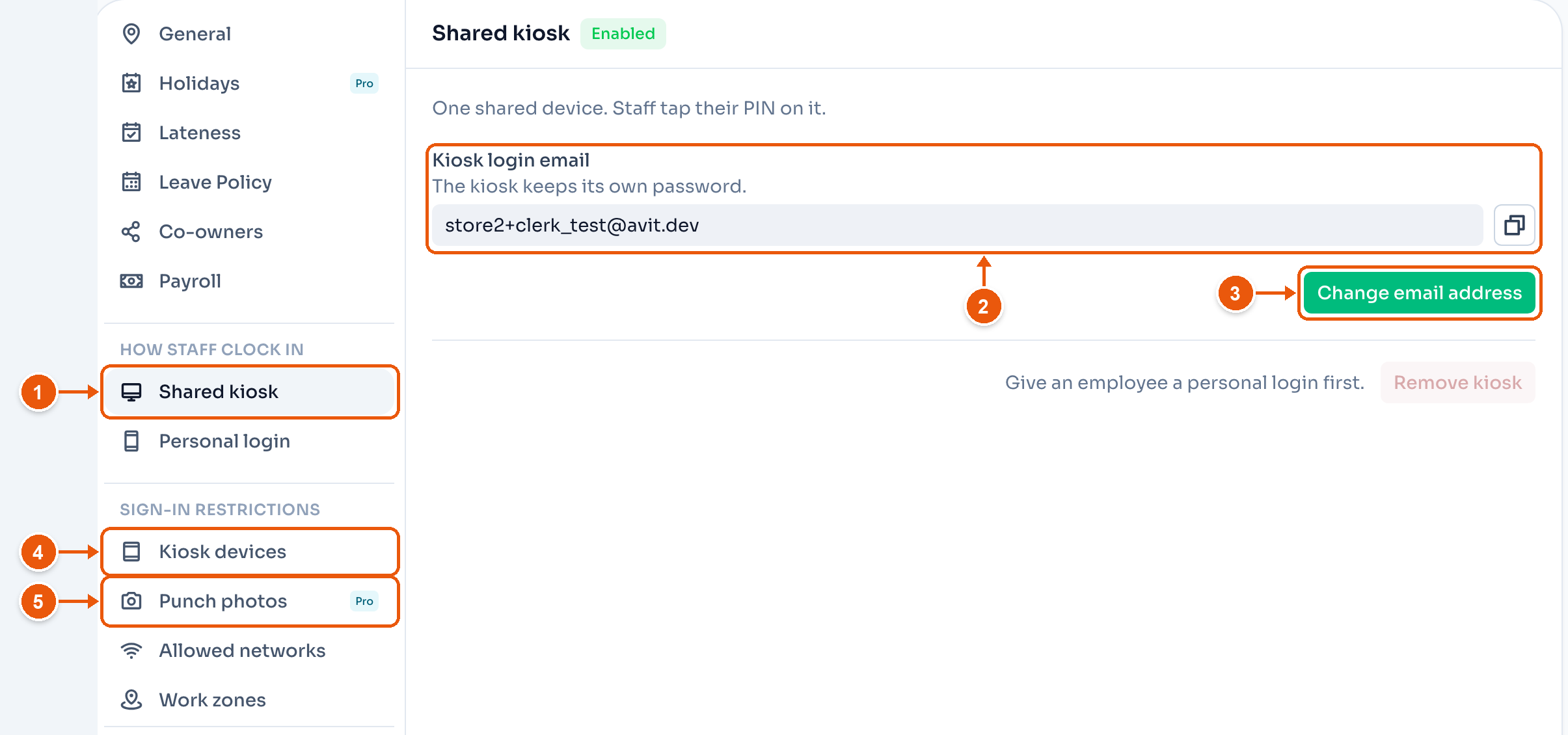
- Shared device.
- Kiosk login email. Optional. The email a Shared Device can sign in with. The device keeps its own password.
- Change email address. Tick Sign out devices still signed in with the current email to sign out every device that still signs in with the old address. The password stays the same. Devices under Devices keep working; to cut one off, remove it there.
- Devices. Every device set up at this location. See below.
- Punch photos. A photo at every clock-in and clock-out. See below.
Devices
Open Location Settings → Shared Device. The device list is at the top. Each device shows its name, when it was last seen, and its IP address. Click a device to see what it is (for example iPad · Safari), the network it last used, how it was set up, and when it was added.
- Add device makes a new setup code. See Set up a device.
- Rename changes the name in the list.
- Revoke access cuts the device off at once. To use it again, set it up with a new code.
On the device itself, Unpair this device ends its access. It needs a new setup code to come back.
A location that signs in with an email can block devices you did not add. Turn on Only allow devices on the list. Add the devices already signed in puts every device signed in now on the list the next time it opens ClockTap, within 24 hours.
Clock in or out
The kiosk opens on Select staff. The employee taps their name, and the PIN pad opens.
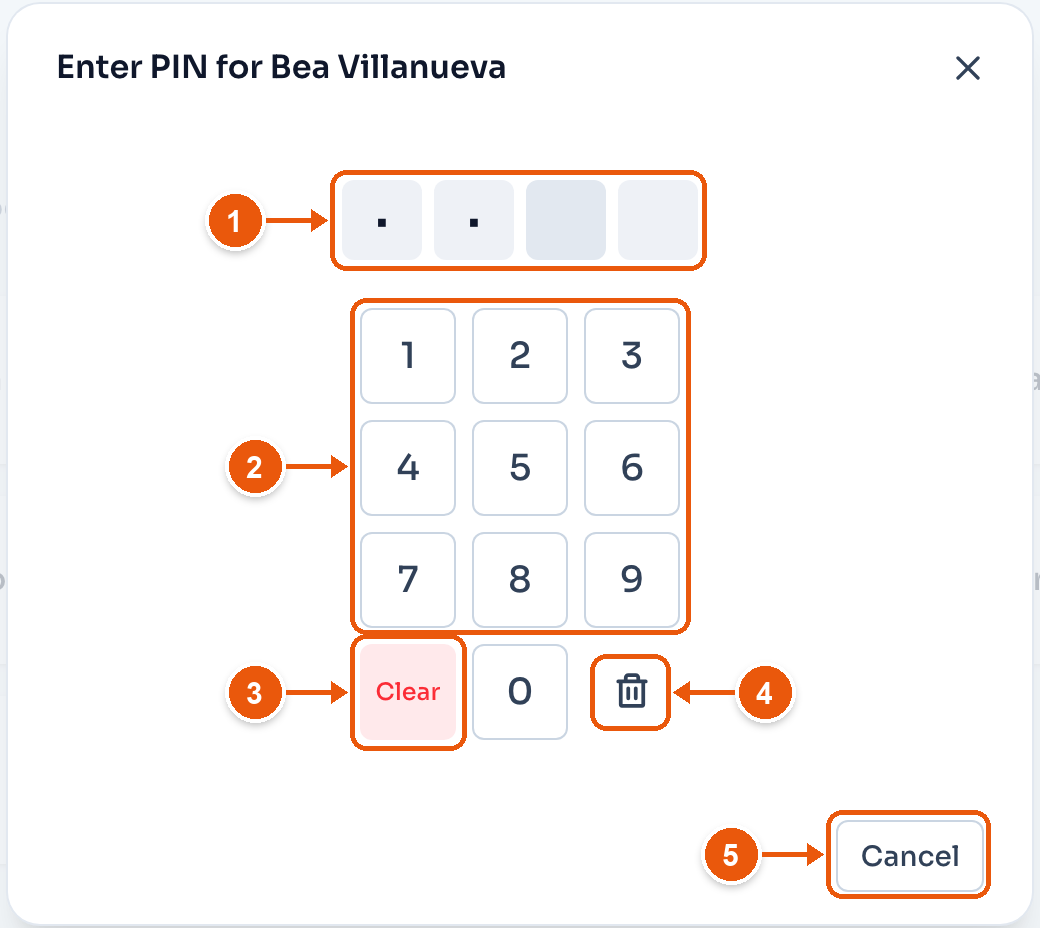
- One box per digit. The PIN has 4 digits. The fourth digit checks it, with no button to tap.
- Tap the numbers, or type them on a keyboard.
- Clear removes every digit.
- Removes the last digit.
- Cancel goes back to the names.
You set each employee's PIN in Employees. After too many wrong PINs, the pad locks for a few minutes.
The employee's screen
A correct PIN opens the employee's own screen.
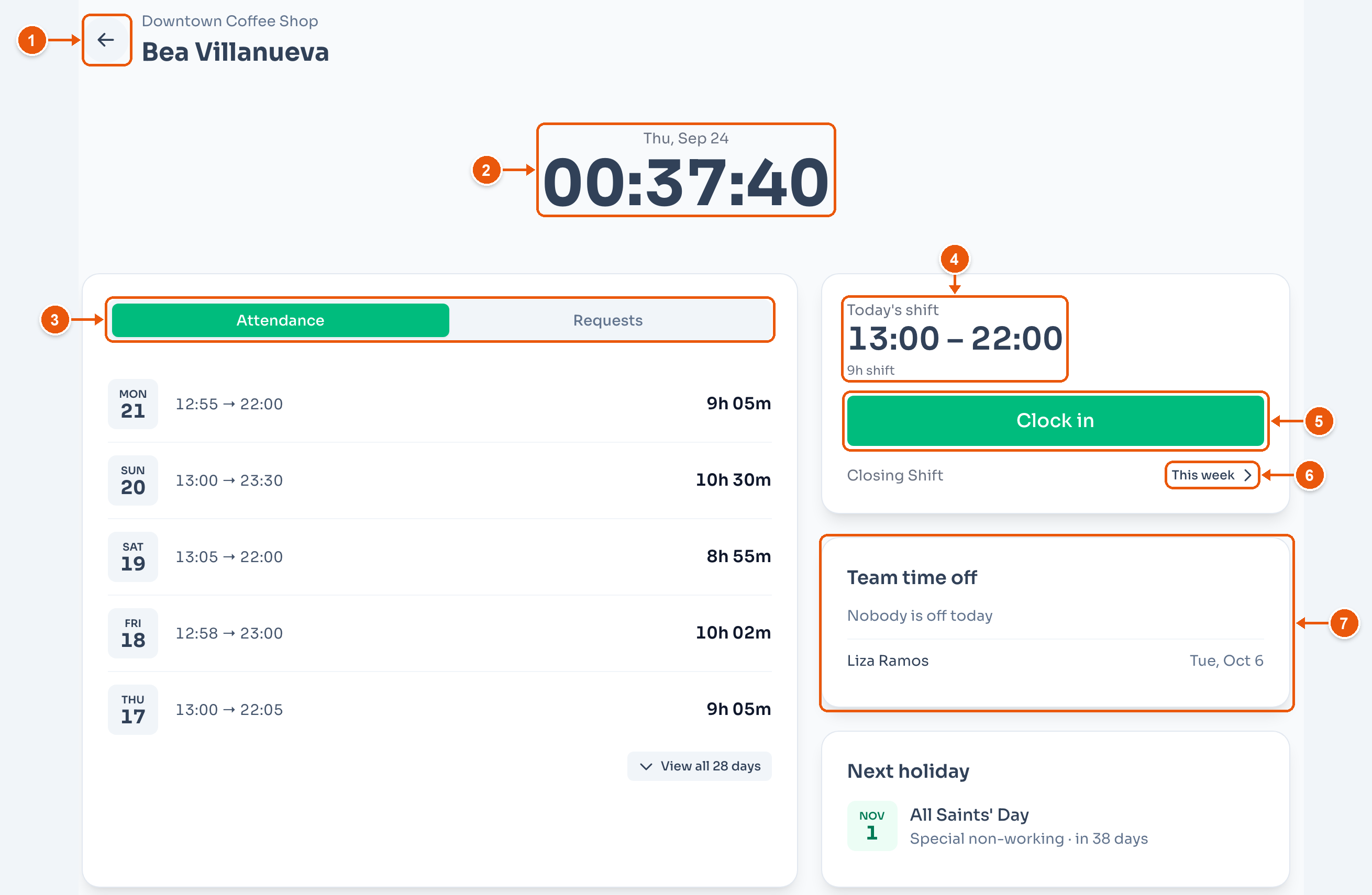
- Back to the names.
- The date and time at the location.
- Attendance lists the last days worked, with the hours. Requests is below.
- Today's shift. Here, 13:00 – 22:00.
- Clock in. When the employee is in, it reads Clock out.
- This week shows their shifts for the next 7 days.
- Off today and Time off. Who is on leave. Here, Liza Ramos on Tue, Oct 6. Tap a tile for the list. Next holiday sits beside them.
After a clock-in or clock-out, the kiosk goes back to the names in 10 seconds. With no tap for 20 seconds, it asks Are you still there? and goes back 10 seconds later. Stay keeps the screen open.
Requests
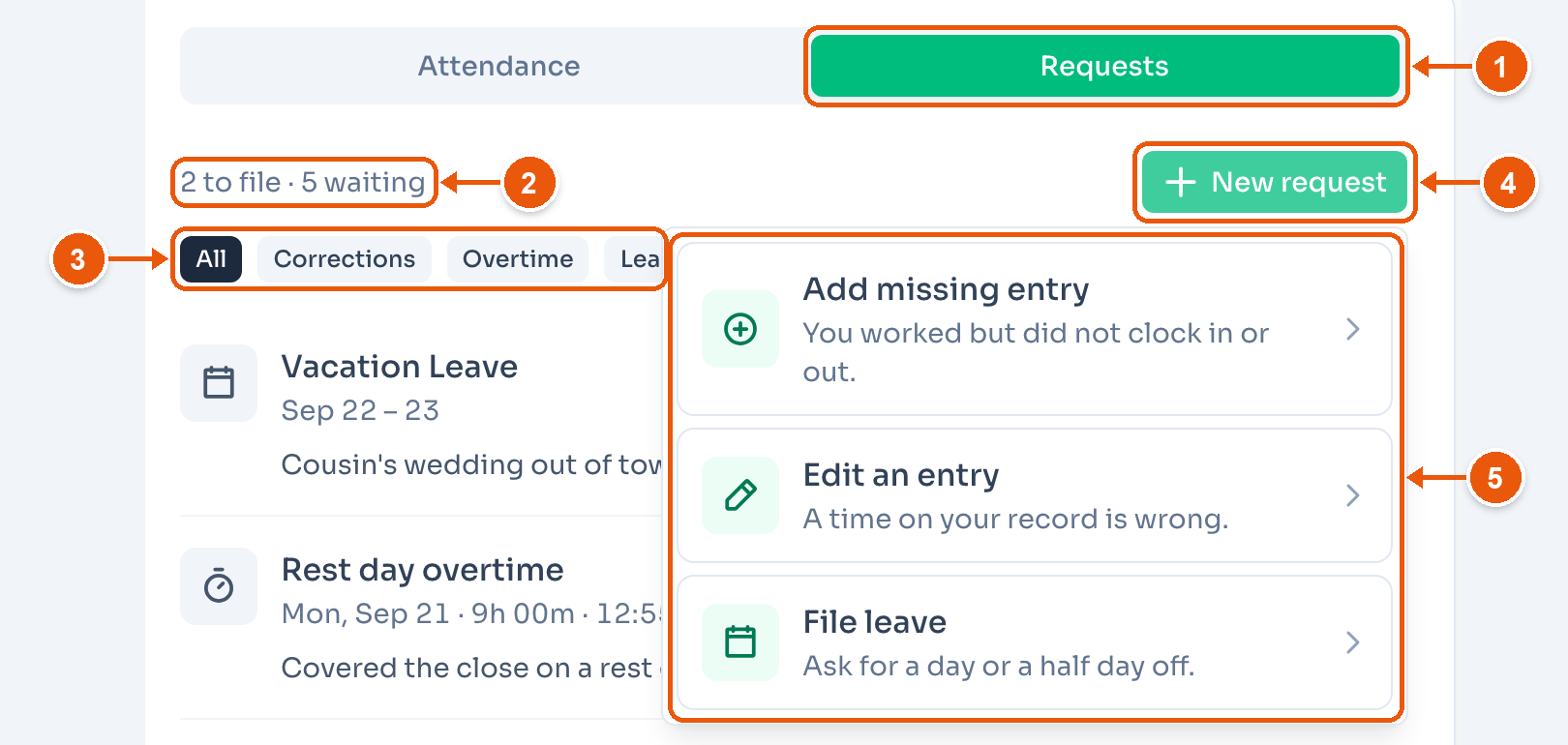
- Requests.
- What is left. Here, 2 to file · 5 waiting: two overtime shifts not filed, and five requests waiting for an approver.
- All, Missing entries, Corrections, Overtime and Leaves filter the list.
- New request.
- Add missing entries, Edit an entry, or File leave. Add missing entries takes one day or several at once.
Requests go to Approvals. For overtime, see Overtime.
Clocking out early
If an employee taps Clock out before their shift ends, the kiosk asks Clock out early? It shows when the shift ends and the time now. If the day counts as undertime, it also shows how short the day is. Nothing is saved until the employee answers.
- Go back closes the question. The employee is still clocked in.
- Clock out anyway clocks them out.
The question shows only on a scheduled day. A rest day or a shift with no end time has nothing to compare against.
Photo at every punch
ClockTap can take a photo at every clock-in and clock-out. The photo shows beside that day's entry on the attendance page. Tap it to see it full size.
Open Location Settings → Punch photos and turn it on. Photos are a Pro feature. The setting covers the kiosk and staff who use personal login. With it on, the button reads Clock in with photo.
Read these before you turn it on:
- An employee who blocks the camera cannot clock in. The photo is part of the punch. If the browser blocks the camera, the kiosk shows how to turn it back on. Tell your team first.
- ClockTap does not match faces. The photo is for you to look at.
- Photos are deleted after 90 days. This still happens if you turn the setting off later. Attendance records do not change.