Leave Policies
Set the leave types a location offers, give one employee their own days, and correct a balance.
Leave Policies
A leave policy sets the kinds of leave your team can file, how many days they get, and what happens to unused days when the leave year ends. Each location has its own.
Rules apply in this order: the location policy, then an employee's own rules, then any one-time adjustment to a balance.
The location policy
Open Location Settings → Leave Policy.
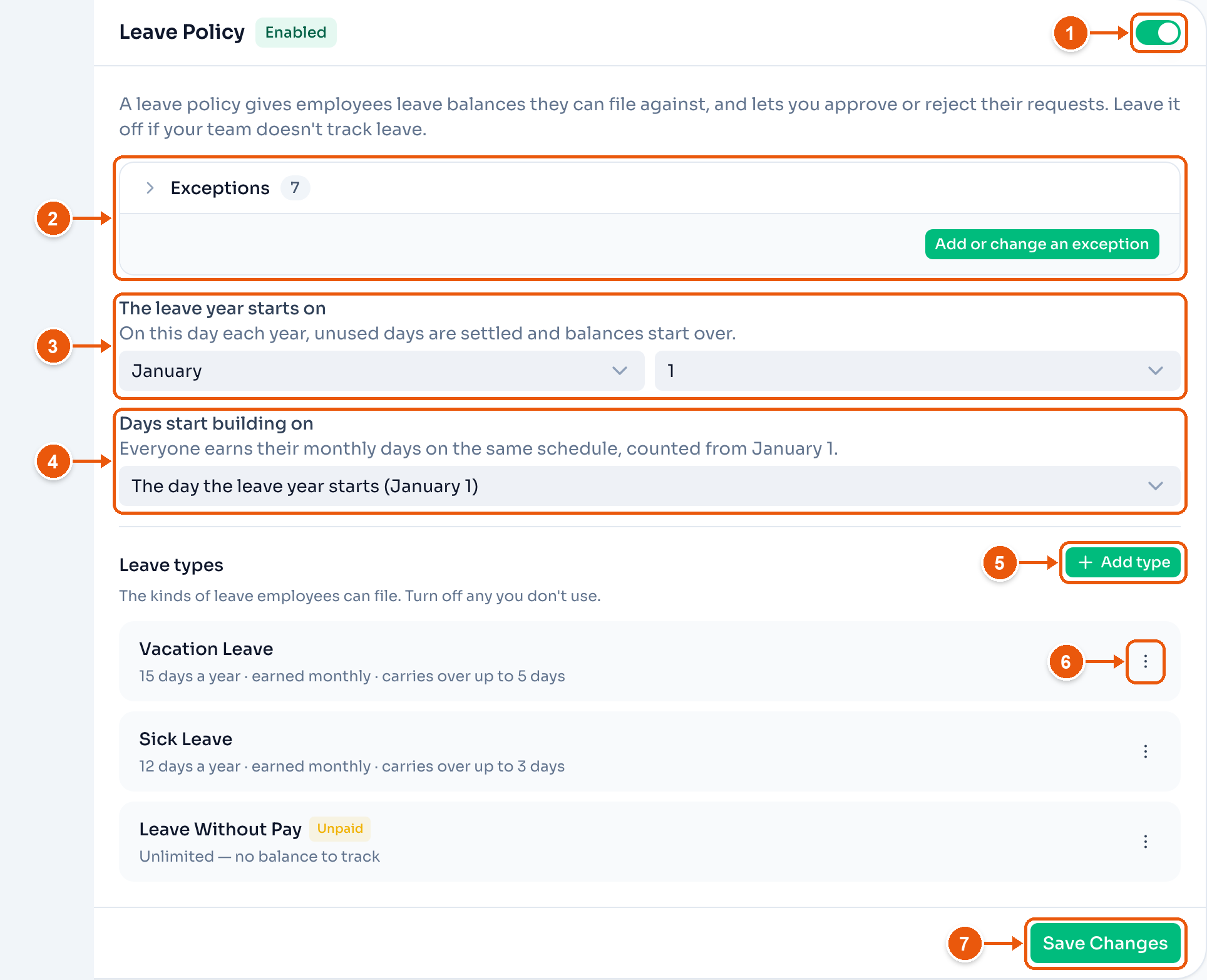
- Turn leave on for this location. While it is off, ClockTap keeps no balances.
- Exceptions lists the employees who have their own rules. Here, 7. Open one to change their rules.
- The leave year starts on. On this day, unused days are settled and balances start over.
- Days start building on. The day the leave year starts, or each employee's own hire date.
- Add type adds a kind of leave, such as service incentive leave. A location can have up to 12.
- Edit, or turn the type off.
- Save Changes.
A new location starts with Vacation Leave, Sick Leave and Leave Without Pay.
A leave type
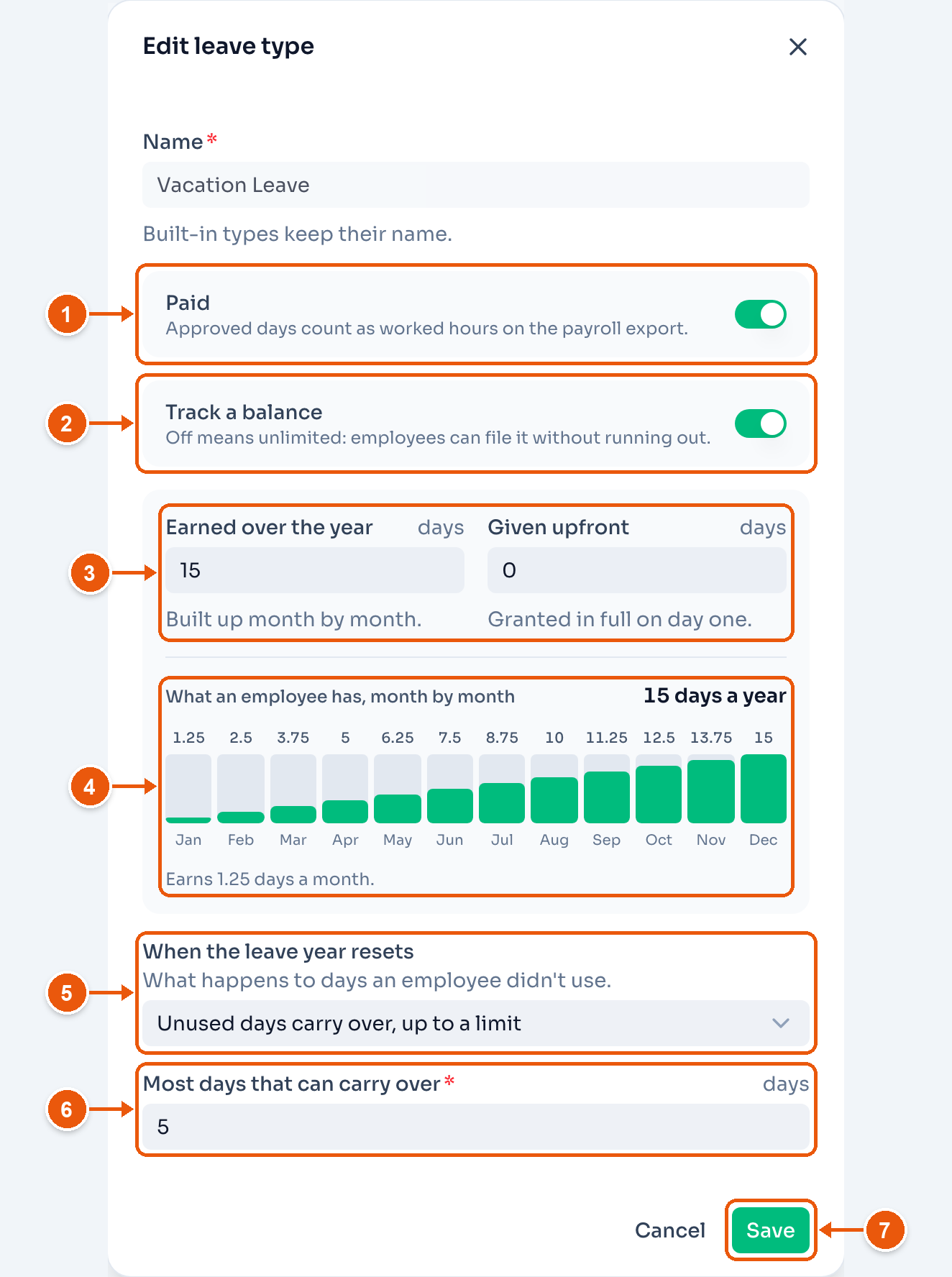
- Paid. Approved days count as worked hours on the payroll export.
- Track a balance. Turn it off, and employees can file this leave without a limit. Leave Without Pay starts off.
- Earned over the year builds up month by month. Given upfront is there in full on the first day. You can use both.
- What an employee has at the end of each month. Here, 1.25 days a month, 15 a year.
- When the leave year resets. Unused days are lost, carry over, or carry over up to a limit.
- Most days that can carry over. Here, 5. Days above it are lost.
- Save.
One employee's own rules
Some employees get different days, for example after long service. Open the employee from Employees, then Leave.
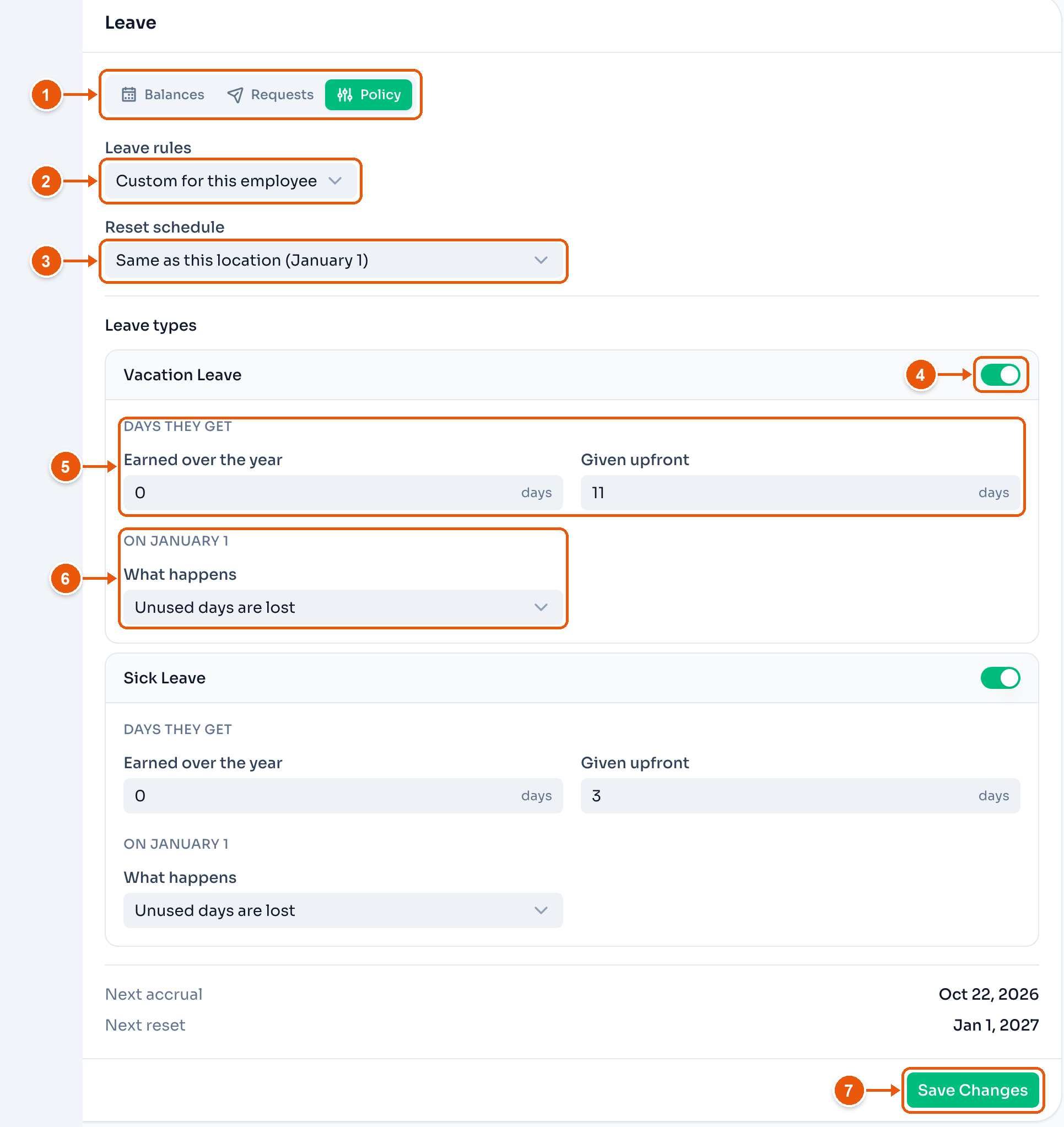
- Policy.
- Leave rules. Same as this location, or Custom for this employee.
- Reset schedule. The location's date, or a date you choose.
- Turn a type on to give it its own rules. Off, it follows the location.
- The days this employee gets. Here, 11 vacation days upfront.
- What happens to their unused days at the reset.
- Save Changes.
Switch back to Same as this location to remove their own rules.
Balances
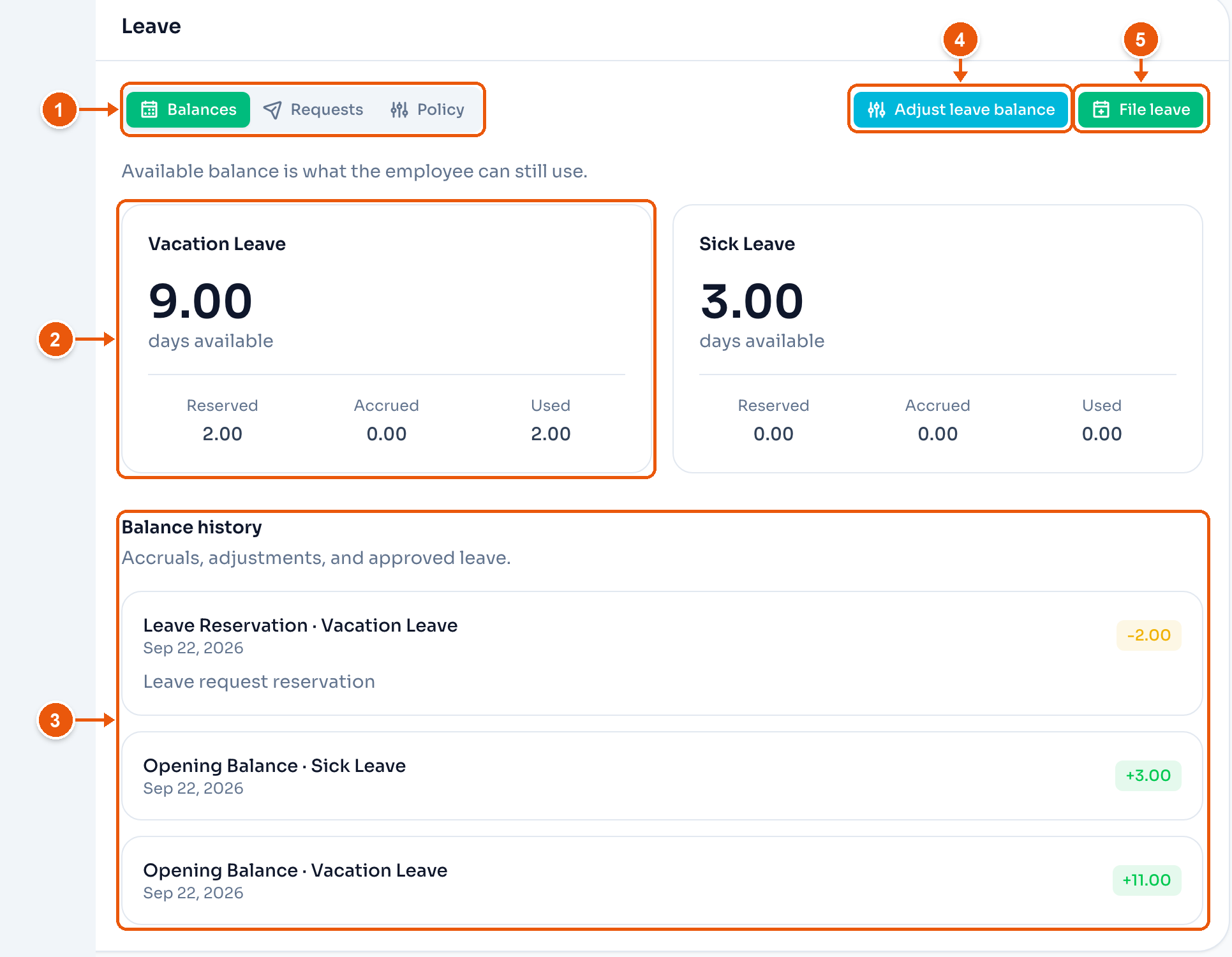
- Balances.
- Days the employee can still use. Here, 9. Reserved is held for leave already filed.
- Balance history lists every change: days given upfront, monthly days, carryover, adjustments, and requests.
- Adjust leave balance. See below.
- File leave on the employee's behalf.
You cannot type a balance. It is the total of its history, so every number has a reason.
Adjust a balance
An adjustment corrects one balance. It does not change the policy or past requests.
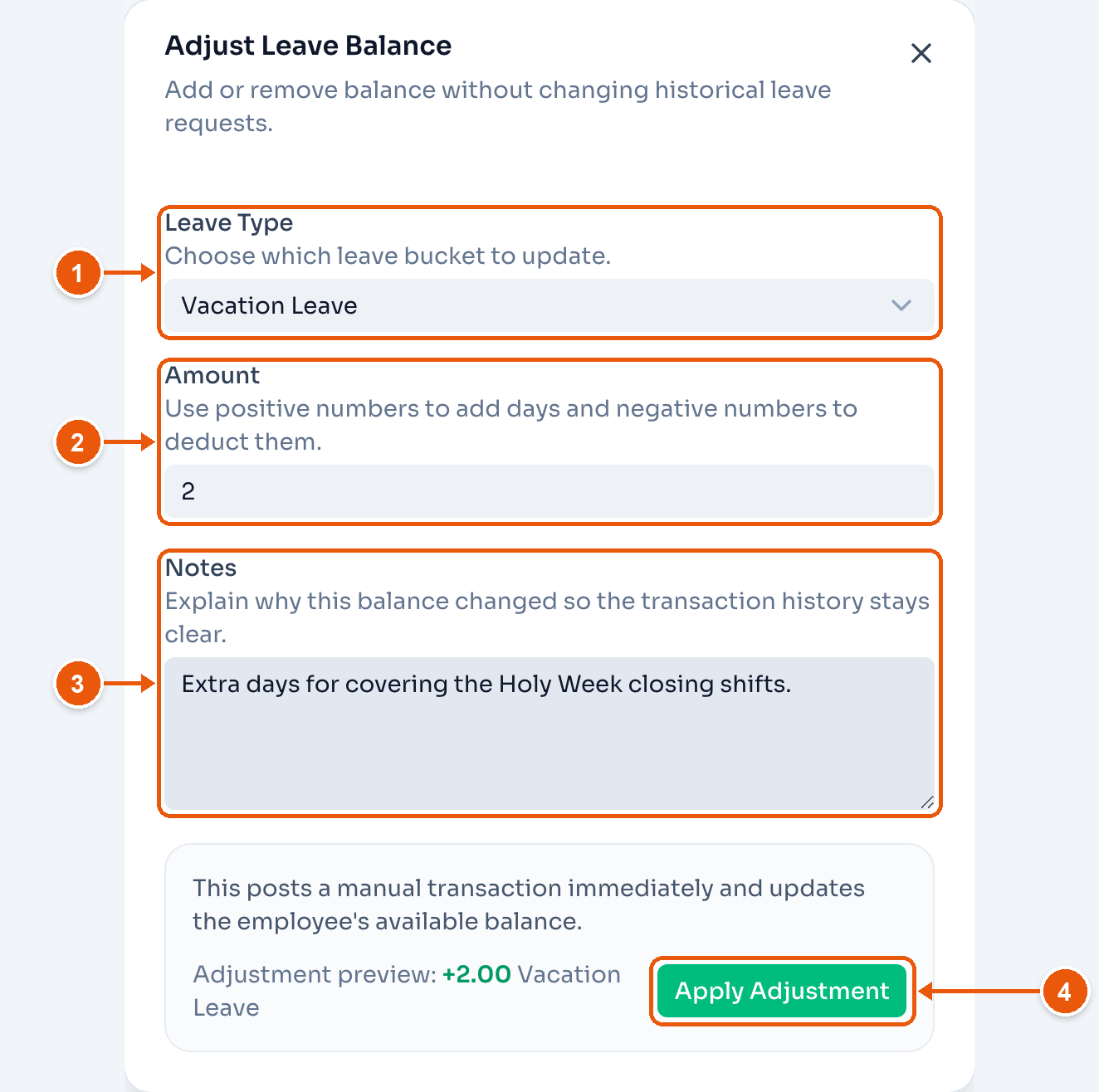
- Leave Type. Only the types that track a balance.
- Amount. A positive number adds days. A negative number takes them away.
- Notes. The reason shows in the history.
- Apply Adjustment. The balance updates right away.
Filing leave
Employees file from the shared device or their own phone. Filing holds the days. A rejected or cancelled request gives them back. See Managing Approvals.
Set up the policy before your team files leave, so balances are right from the first day.