Payslip and export
Finish each employee's payslip, repeat an allowance every cut-off, and download the whole period.
Payslip and export
Attendance and payslip
Attendance lists the hours for each day. Pay Categories under it groups the same hours by day type, for your accountant.
Payslip is a draft. ClockTap fills in the pay, and SSS, PhilHealth, Pag-IBIG and withholding tax if contributions are on. Allowances and deductions from your payroll settings arrive with this payslip's share of the monthly amount. What you type saves to that payslip.
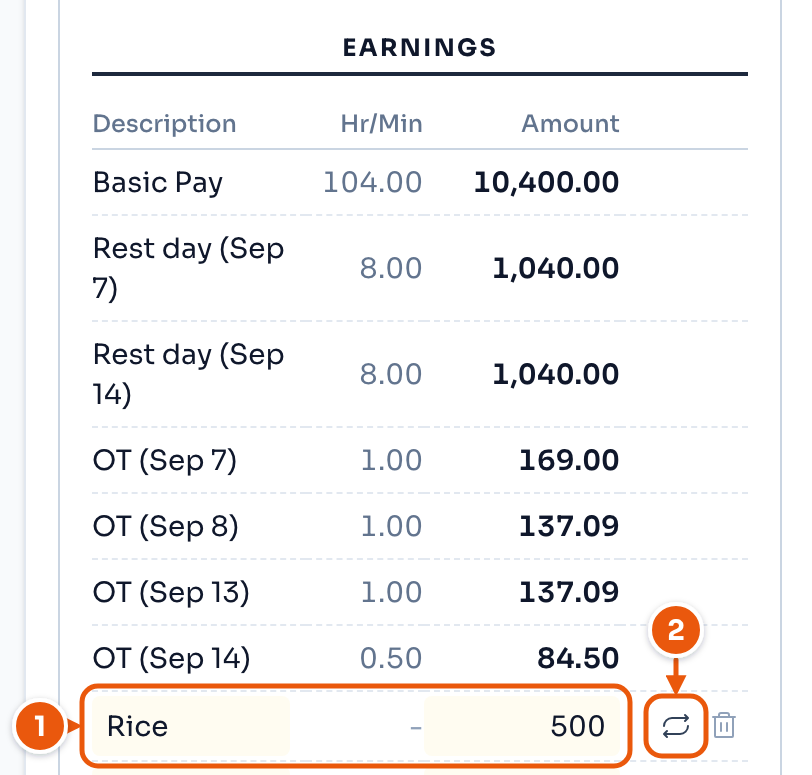
- Add an earning: a name and an amount. Here, Rice, 500.
- Repeat it on later payslips.
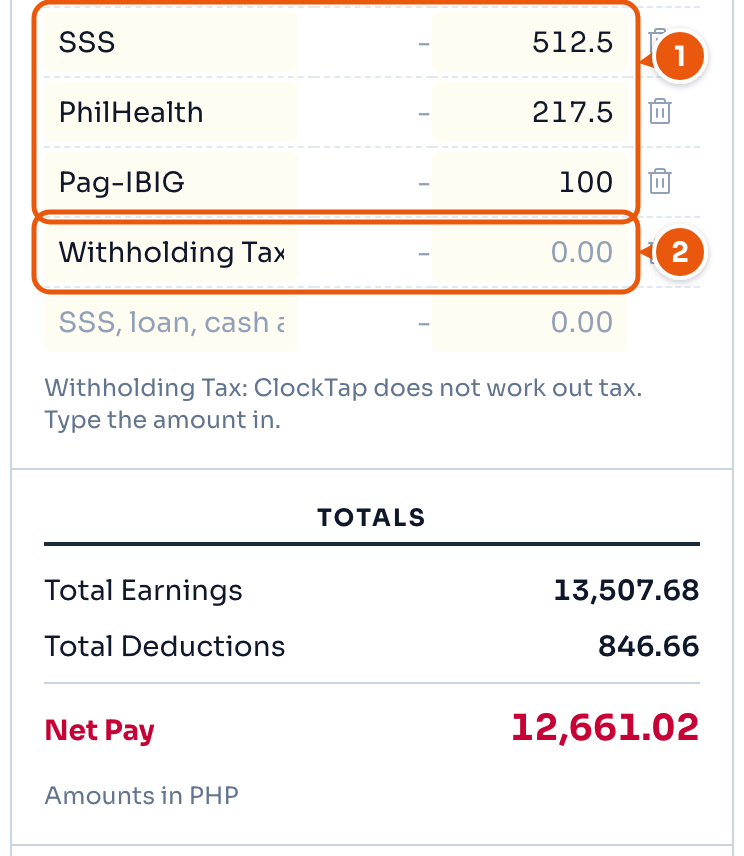
- SSS, PhilHealth and Pag-IBIG. Type over any amount to change it.
- Withholding Tax, from the BIR table. It updates as you add earnings. Type over it to change it.
Net Pay updates as you type.
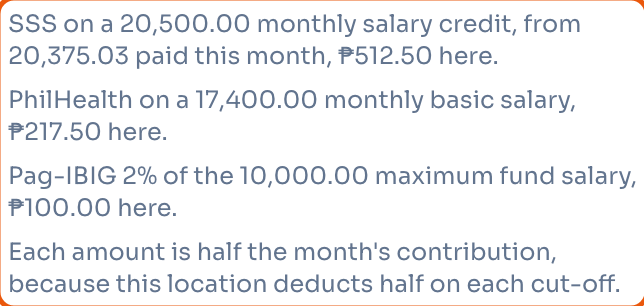
The note under the payslip shows what each contribution and the tax is based on.
The rows under Earnings and Deductions list overtime, late and undertime by day. Minutes inside the late grace period are paid. A location can also choose to deduct only the minutes after the grace period, in Payroll Settings → Overtime & premiums → Late. Time missed in the middle of a day comes off as Short.
To print one row for each kind of pay instead, such as all overtime in one row with its total time, turn on One row per pay type in Payroll Settings → Payslip → General. Late, undertime and absences then print one row each too.
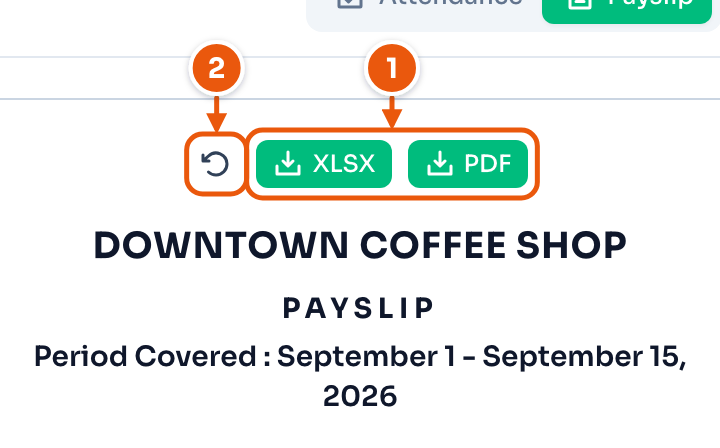
- Download as XLSX or PDF.
- Undo what you typed on this payslip.
Repeat an allowance
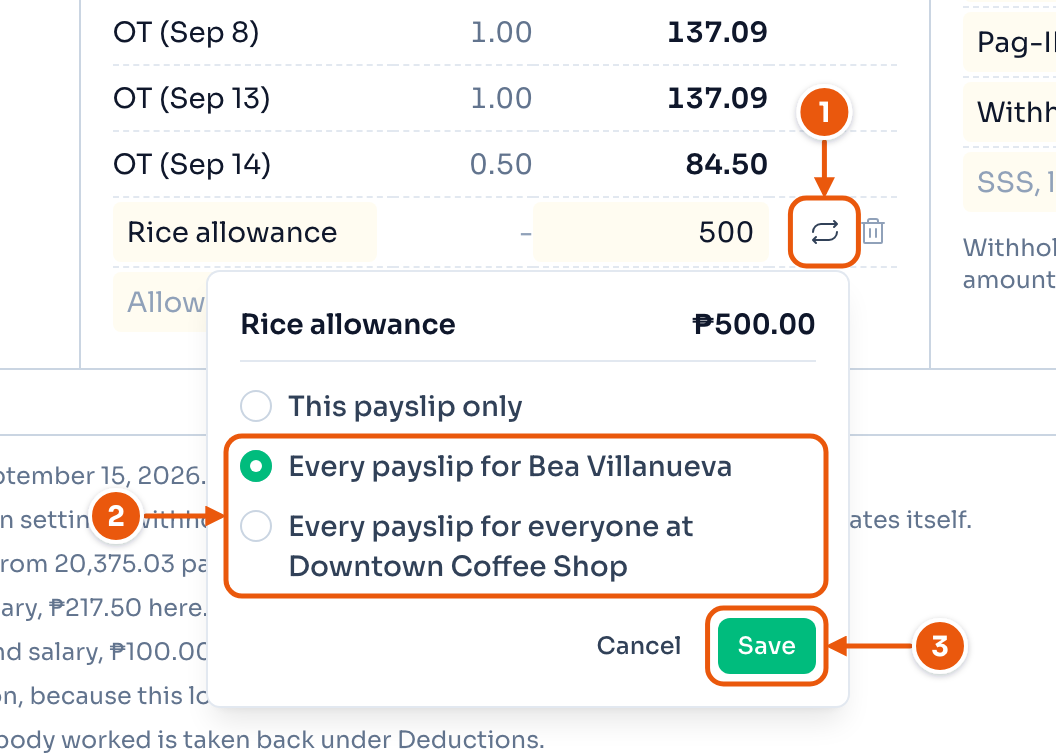
- The repeat button.
- Repeat it for this employee, or for everyone at the location.
- Save.
This payslip only stops the repeat for that employee. The trash button on the row stops it as far as it reached: for that employee, or for everyone at the location. A new amount on one payslip changes that payslip only. A repeat saves a row in Payroll → Allowances with the monthly amount, so 500 on a twice-a-month payslip saves 1,000. To leave one employee out of an allowance for everyone, add a ₱0 row for them there.
Incentives
In Payroll Settings → Incentives, turn on incentives and add a name and an amount for one review, completed job or sale. Incentives are taxable.
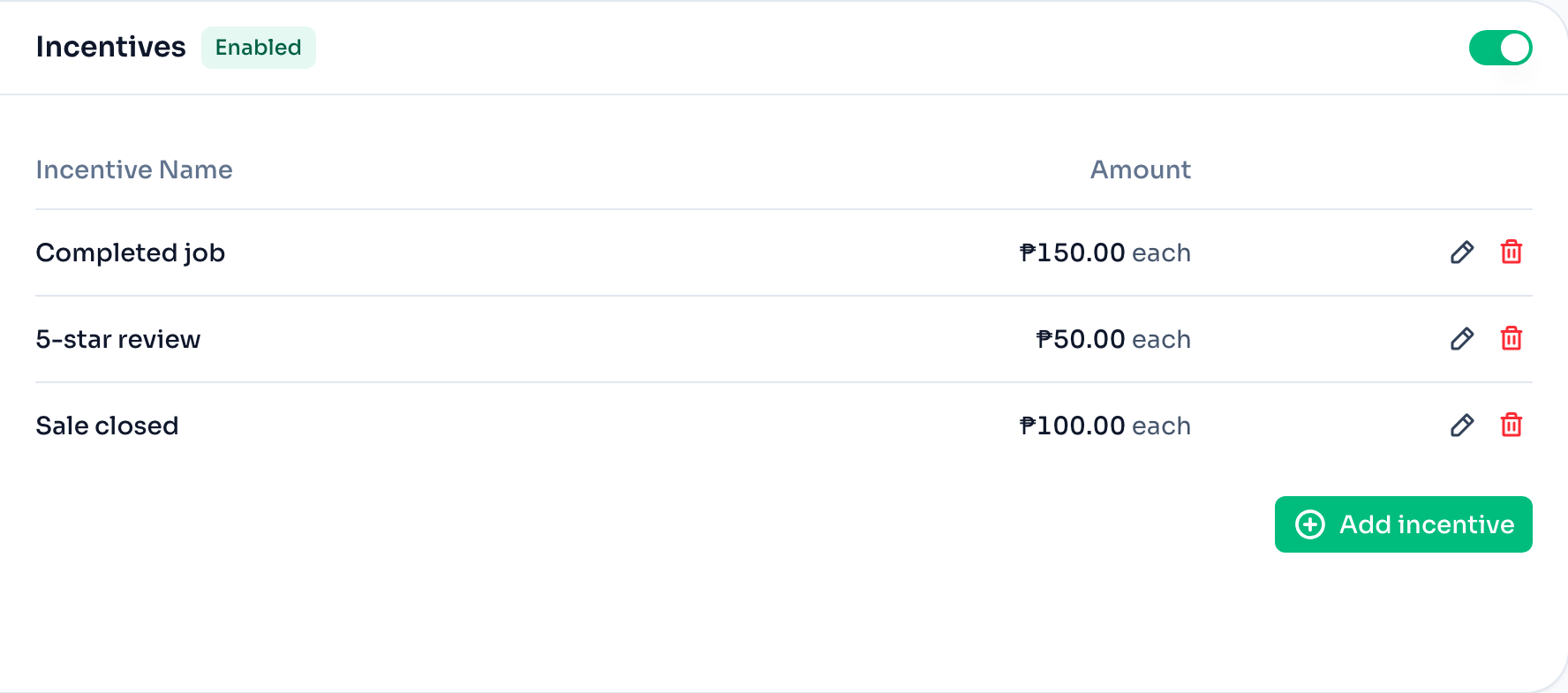
On Payroll, open Incentives and enter each employee's count for the cut-off. Add 1 to everyone adds one to each person shown. Each person gets the full amount for their count.
The payslip prints the count under Qty and lists the rate in its notes. Change an amount on a payslip to override it for that payslip. Changing the rate in Payroll Settings updates every incentive amount you have not typed over. Turning off incentives leaves the saved counts ready for later.
Counts stay with their cut-off dates. Changing the pay schedule does not move them to new cut-offs.
Export
Export on the payroll page opens a menu with two files for the whole cut-off:
- Pay Run Summary — one row per employee, like the pay run table: overtime, late and undertime as time and pesos, each allowance and each deduction in its own column, then basic pay, gross pay and net pay. The amounts are the ones on each payslip, with what you typed on it. A Notes column says why a pay is blank, and which leaver's last pay you hold for their final pay.
- Detailed DTR — one sheet per employee, day by day, with pay totals.
- Payroll Register — one PDF with every employee's payslip as a block, a line for each employee to sign, and the totals for the cut-off. Each location starts on its own page.
Employee report
The payroll page has two tabs: Pay run and Employee report. Open Employee report and pick the employee.
Each cut-off is one row: gross pay, then each allowance, incentive, government contribution, tax, deduction and loan in its own column, then net pay. Each row matches that cut-off's payslip, with what you typed on it. The dates start on this year. Only cut-offs that have ended count. A cut-off with no price yet keeps its row, with the reason under the dates.
Download Excel saves the same rows and amounts, with a Total row. It lists the columns under two headings, Allowances and Deductions, the way the Pay Run Summary does.
Annual Summary saves one year as a row per month, for this employee or everyone. An employee who left gets their final pay as its own row.