Payroll settings
Set the pay period, employee pay, premium rules, allowances, deductions and loans for a location.
Payroll settings
Open Payroll and click Settings. Pick a setting in the menu, under Pay rules or Payslip. Every change saves by itself: a switch or a choice at once, a typed box as soon as you stop typing. Every figure updates.
1. General
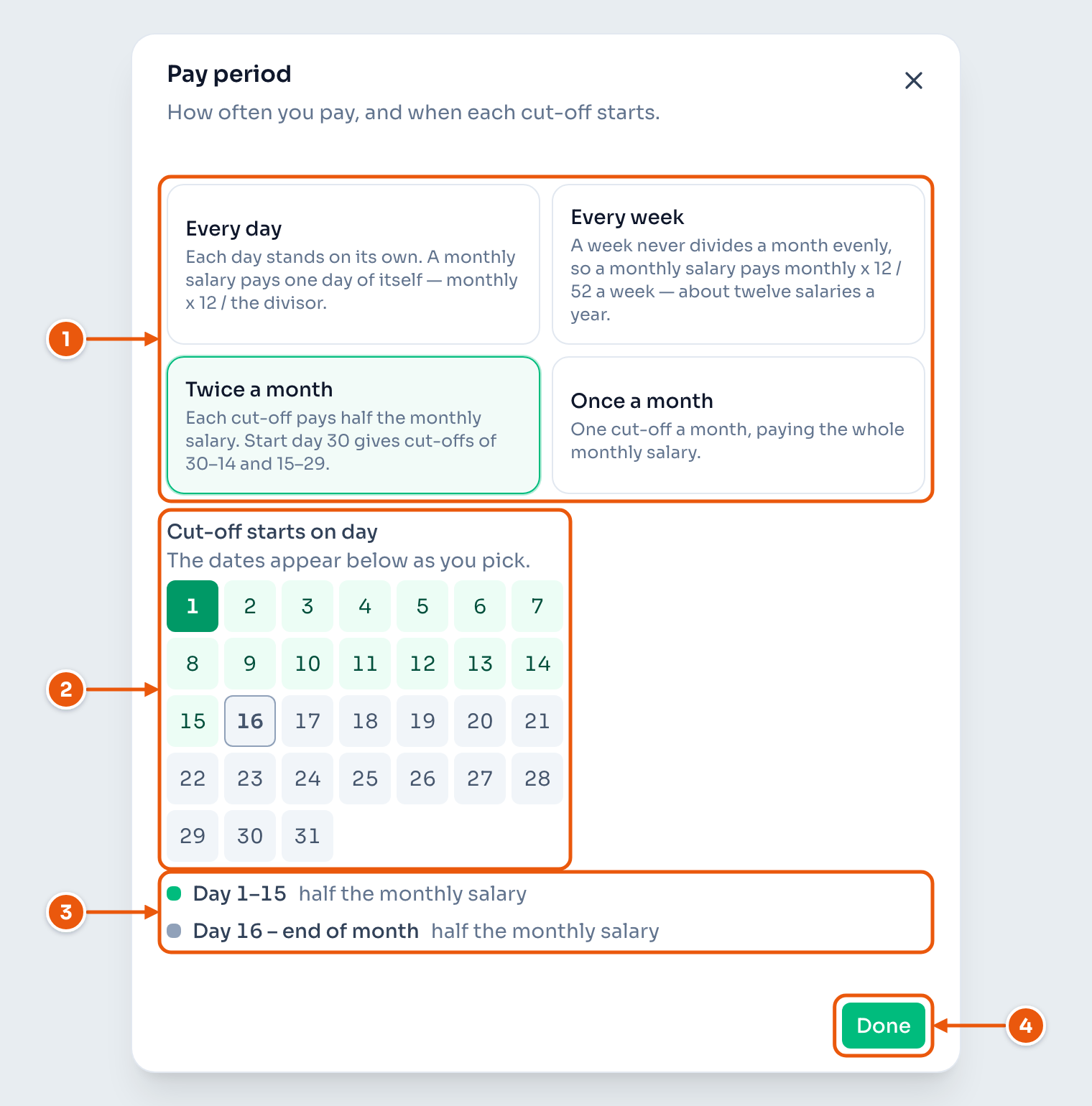
Pay period
- How often you pay.
- The day a cut-off starts.
- The dates you get. A start day of 1 gives the 1st–15th and the 16th–end of the month.
Monthly salary
ClockTap reads each person's weekly schedule and turns their salary into a day rate: 261 paid days a year for a five-day week, 313 for six, 365 for seven. Someone with no weekly schedule counts as a five-day week. The list groups everyone on a monthly salary by their week and shows each person's day rate.
If you pay on a 26-day month, turn on 26-day month. A six-day week then uses 312 and a five-day week uses 264.
To set the number yourself, open Advanced settings and type the Factor rate: the paid days a year, such as 261, 313 or 365. It sets the day rate and hourly rate of everyone on a monthly salary at this location, and the payslip says you typed it. Clear the box to go back to each person's schedule. A factor rate typed for one employee, in their Pay for panel, wins over this one.
Payslip
The business name at the top of every payslip. Leave it blank to use the location's name.
2. Employee pay
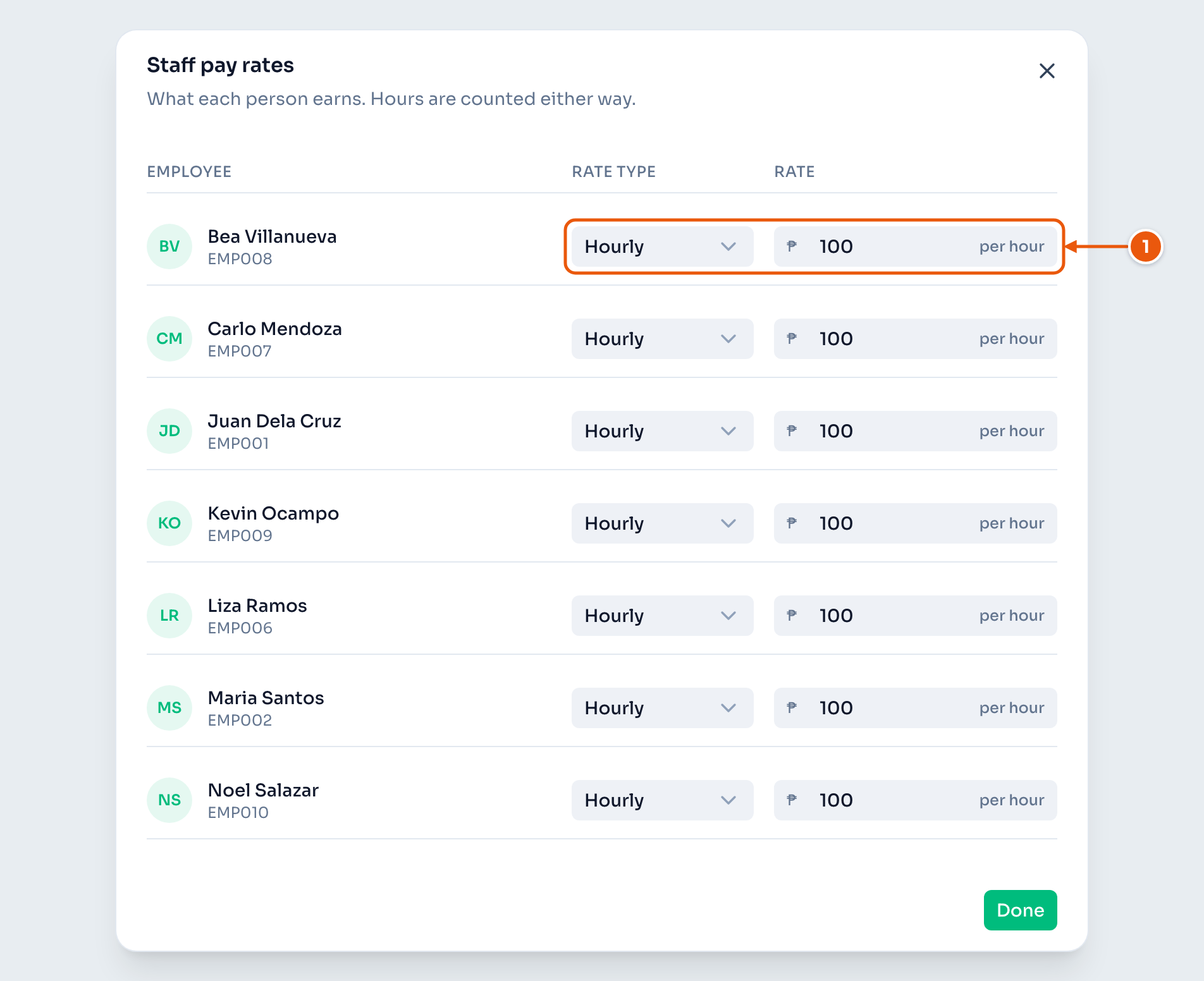
- The rate type and the amount. Each row saves on its own.
- Pays and deducts names what is off for each employee, or says Everything. Click it to open the Pay for panel. See What one employee is paid.
3. Overtime & premiums
- Overtime — turn off the switch beside Overtime, and this location has no overtime.
- Night pay — the night hours. The default is 10pm to 6am.
- Holiday pay — the switch beside Holiday pay pays the regular-holiday premium. Most employers leave it on.
What each hour pays, at the bottom, shows the rate for every kind of hour as a percent of the normal rate. It changes as you change the three rules above. The rates follow Philippine law. See Holidays.
4. Allowances
A table of earnings, such as rice or transport, one row each.
Add allowance opens a form:
- Description — the name on the payslip.
- Who gets it — Everyone, or Chosen employees.
- Monthly amount — what it comes to in a month.
- When to pay it — if you pay twice a month: Half on each pay, All on the first pay or All on the second pay. If you pay every week: a share every week, or all on the first or last pay of the month.
- Starts and Ends — both optional.
- Tax-free — see Contributions.
By default, each payslip shows its share of the month. If you place the allowance on one pay, that payslip shows the whole monthly amount. You can still type over the amount on any one payslip.
A row for one employee replaces a row for everyone with the same name. To leave one person out, add a ₱0 row for them.
5. Deductions
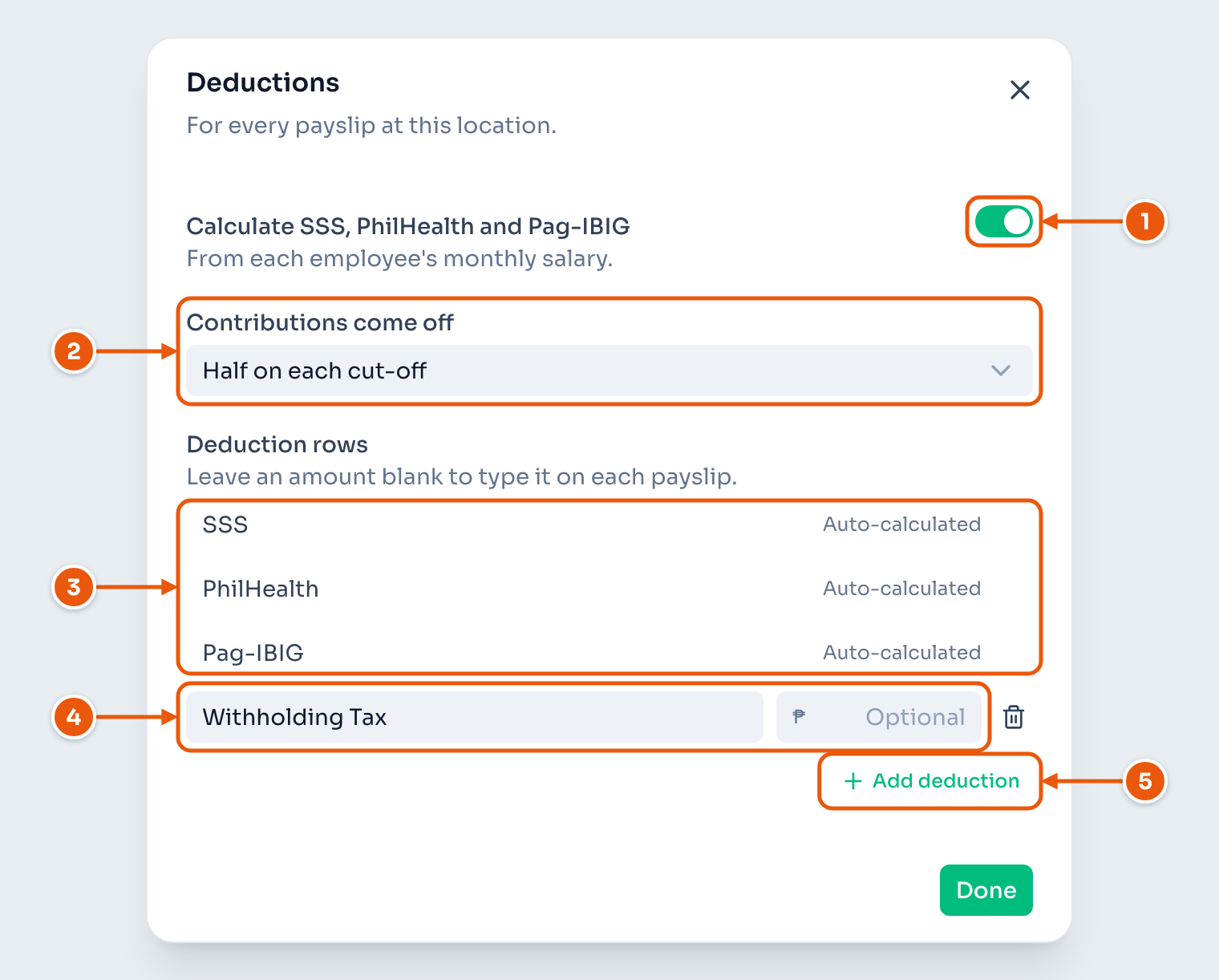
- Turn SSS, PhilHealth, Pag-IBIG and withholding tax on or off.
- Click the pencil on a row. Leave out picks the employees who are not members of that fund, or who pay no withholding tax. When to deduct it picks the pay: for pay twice a month, half on each pay, all on the first, or all on the second; for pay every week, the first or the last pay of the month. See which payslip takes the tax.
- ClockTap fills these in.
- Withholding Tax. ClockTap fills it in from the BIR table.
- Add deduction. The same form as an allowance, such as a cash advance one employee pays back from October to December. When to deduct it picks the pay. Leave the amount blank to type it on each payslip.
With the switch off, the payslip carries only the deductions you add here.
Each employee's page lists the allowances and deductions that reach them, with a link to edit them here.
6. Loans
An SSS or Pag-IBIG loan, or a cash advance, that an employee pays back from their payslips. Add loan asks for these:
- Employee.
- Loan — pick a name from the list or type your own.
- Amount to pay back — if payments started before ClockTap, enter what is left.
- Monthly payment.
If you pay twice a month, When it comes off picks the cut-off: half on each, all on the first, or all on the second.
The form shows what each payslip takes and the date of the last payment. Payments start with the current cut-off. Change start picks another.
Each payslip takes its share until the loan is paid. A cut-off with no hours takes nothing, and the last payment moves one cut-off later.
Type a different amount in the loan's row on a payslip and your amount counts instead. The amount left goes down by what you typed.
Edit changes the amount left or the monthly payment from the current cut-off. Earlier payslips keep their amounts. Stop deductions ends the payments and keeps the record. Delete removes the loan from every payslip, past ones too, so use it only for a loan added by mistake.
Loans save as you add them.